
Manage API keys
API keys authenticate requests to the Ferndesk API. When you create a key, choose an access preset or custom scopes so the key only gets the permissions it needs.
Treat every key as a secret. Never commit keys to version control. Revoke a key immediately if it is exposed.
Create an API key
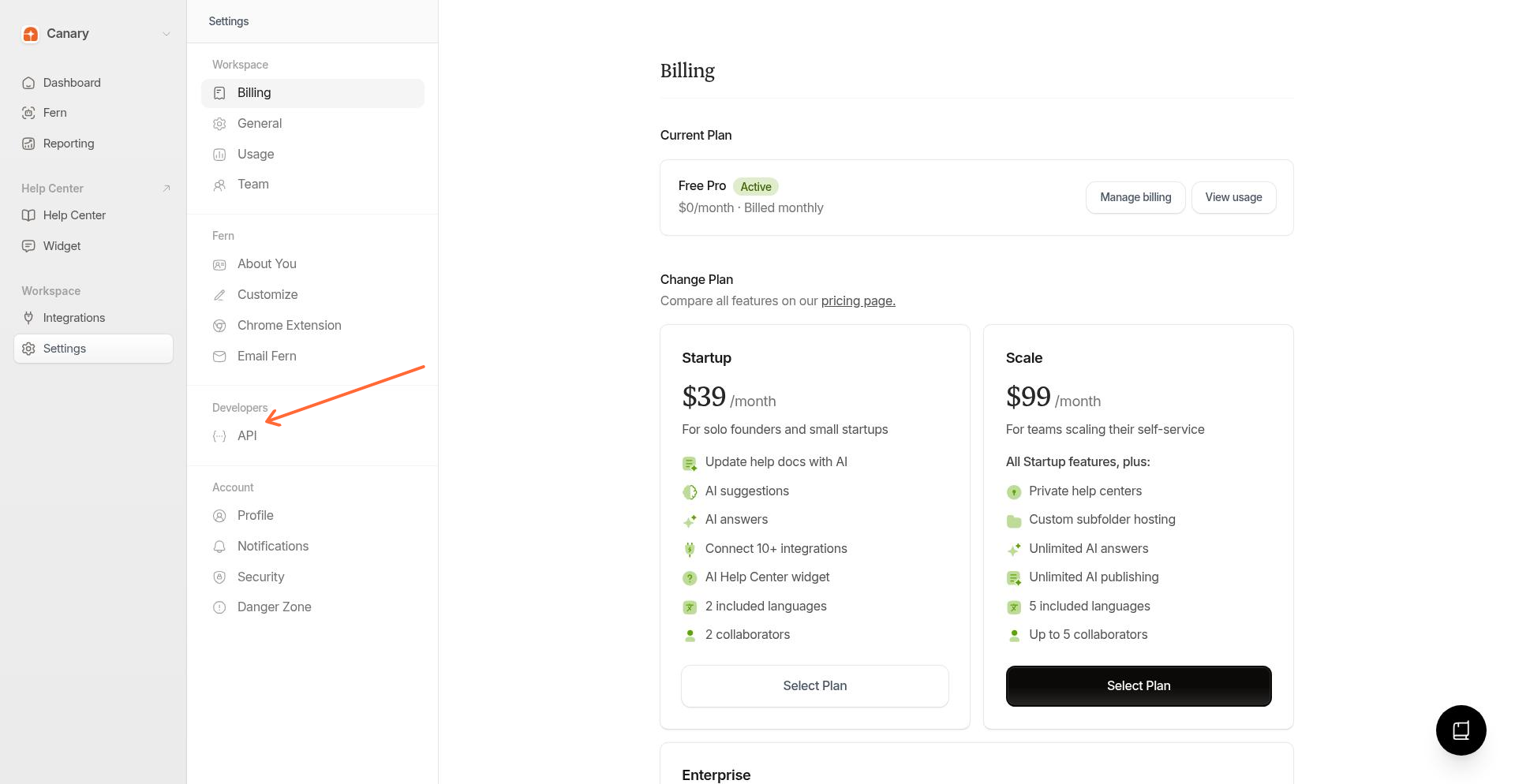
Click API in the left sidebar under Developers.
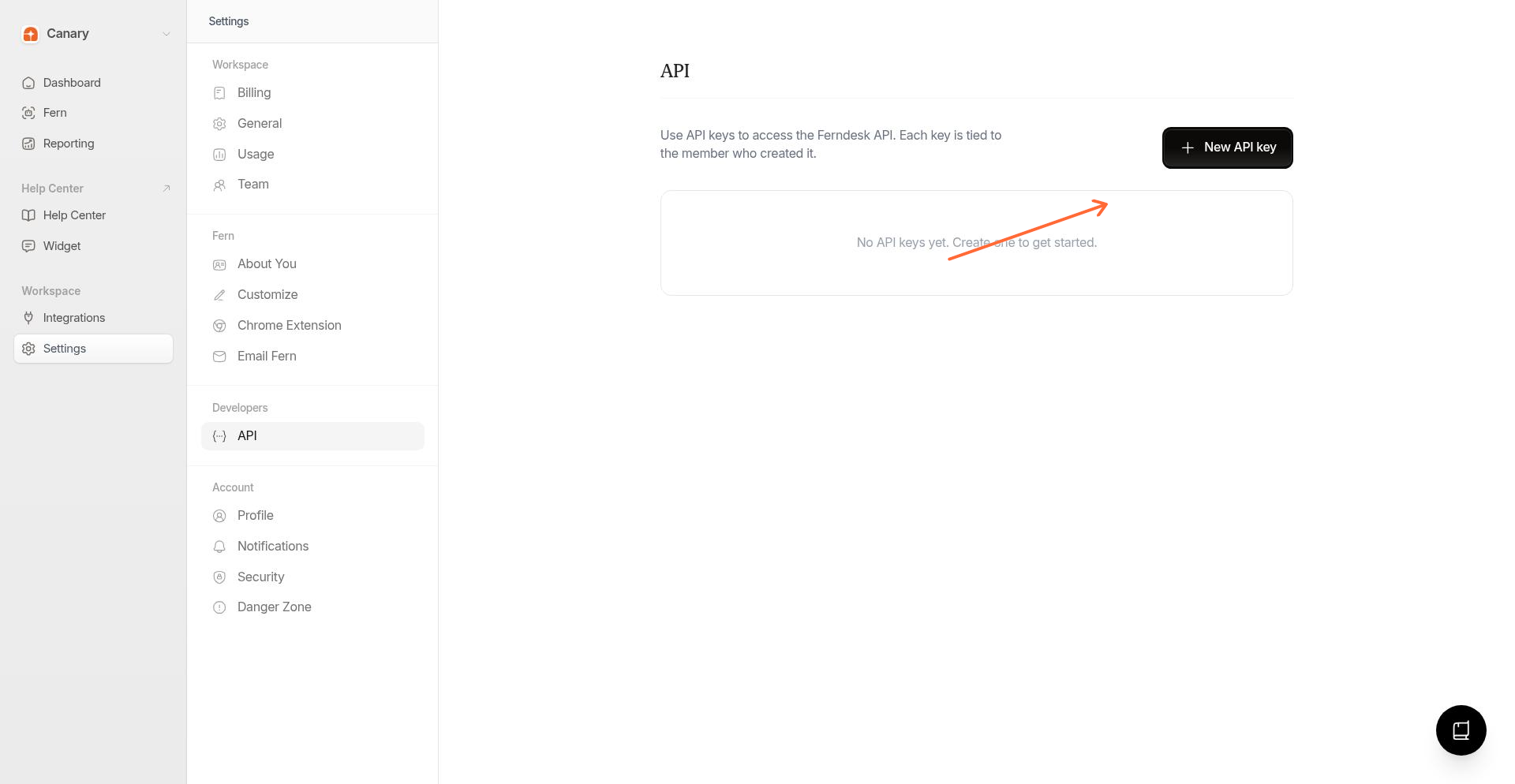
Click New API key.
Enter a Key name (for example, Production or CI/CD pipeline).
Under Permissions, choose a preset:
Full access - Read, write, and publish content, plus analytics, AI conversations, and webhooks.
Read only - Read content, analytics, and AI conversations. Cannot change anything.
Custom - Pick individual scopes with the checkboxes listed below.
Click Create key.
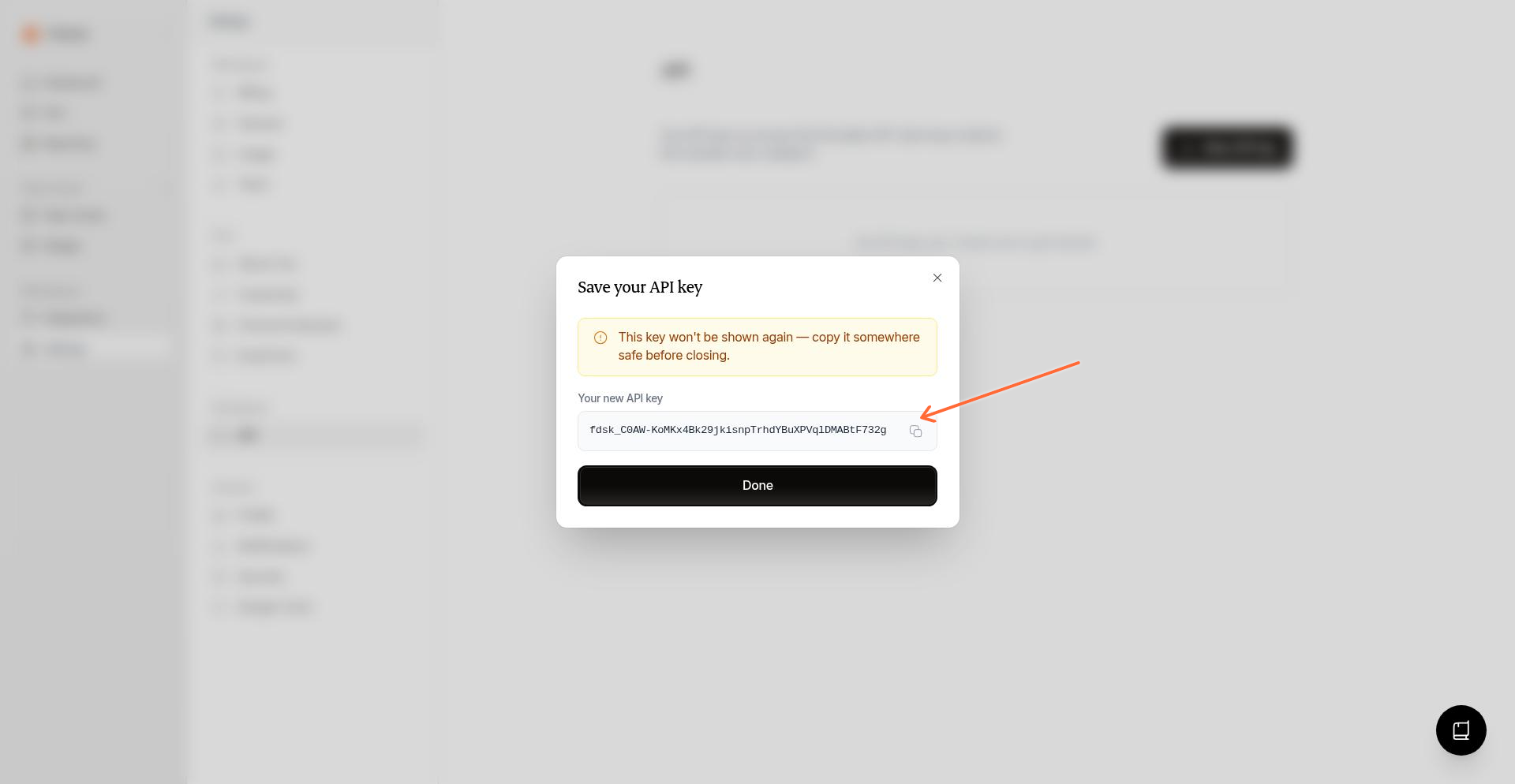
On Save your API key, copy the value under Your new API key, then click Done.
This key will not be shown again. Copy it somewhere safe before you close the dialog.
Custom scopes
When you choose Custom, select one or more of these permissions:
Permission | What it allows |
|---|---|
Read content | Articles, collections, revisions, translations |
Write content | Create and edit drafts, collections, move articles, trash |
Publish | Make drafts live, unpublish, restore revisions |
Read analytics | Reporting and article feedback |
Read AI conversations | End-user conversation transcripts |
Manage webhooks | Register and manage webhook endpoints |
Selecting Write content or Publish always includes Read content. The read checkbox stays on and shows Required by Write content and Publish. You must select at least one permission before you can create a custom key.
View your API keys
All keys appear on the API page with the key name, creator, created time, last-used time, and scope badges.
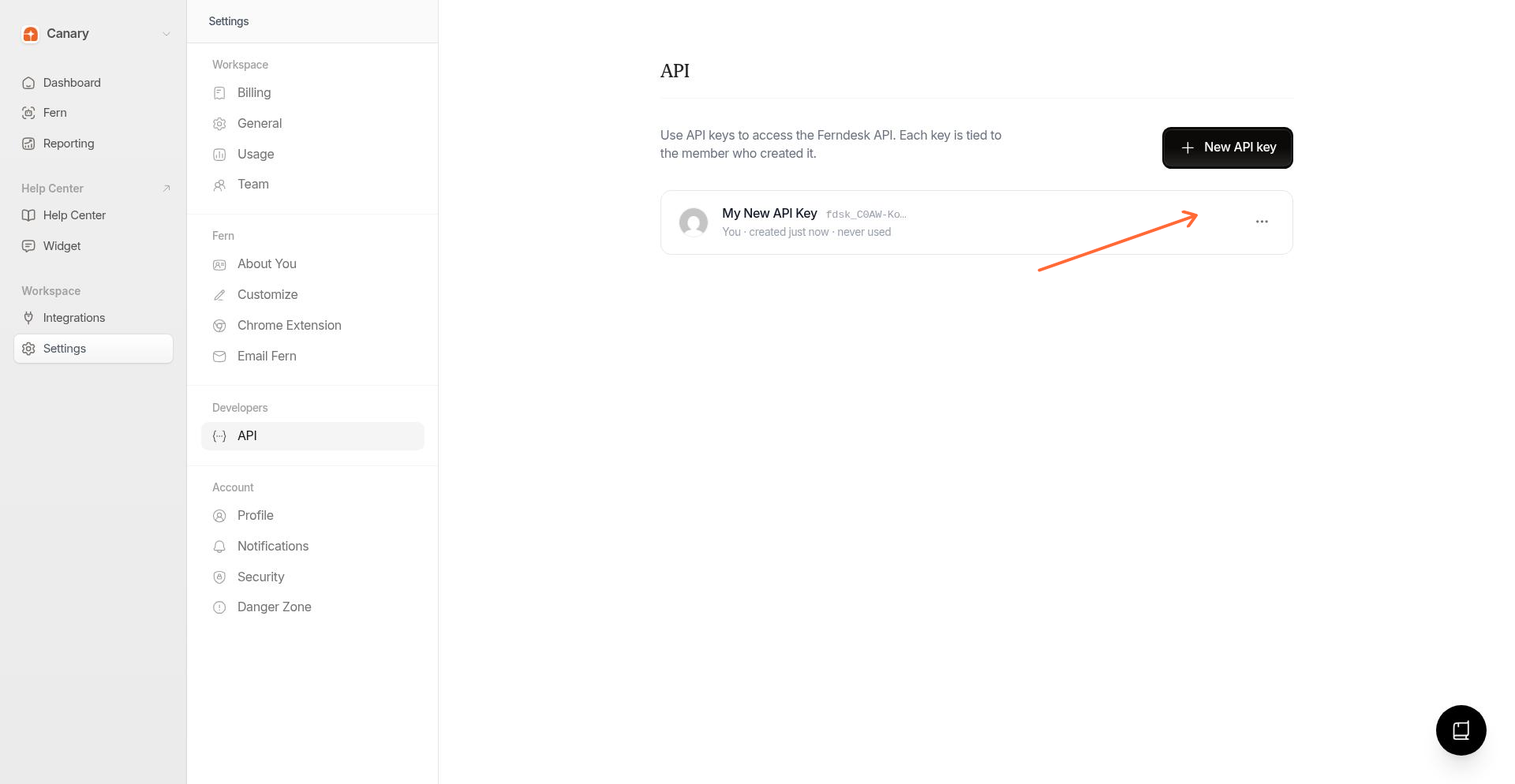
Scoped keys show compact badges such as read, write, publish, analytics, conversations, and webhooks.
Keys created before permissions existed show Legacy · full access. Those keys behave as full access and use the legacy API response format. Rotate them to adopt permissions.
The full key secret is never shown again after creation.
Revoke an API key
Go to the API page.
Open the menu next to the key and select Revoke.
Confirm in the Revoke API key dialog.
Revoking a key immediately blocks every request that uses it.
Rotate keys regularly and revoke unused ones. Prefer Read only or a minimal Custom set when a workflow does not need write or publish access.
For how to send a key on API requests, see Authentication.