
You need to be signed into your Ferndesk workspace before connecting an integration. Make sure you are logged in and that you are in the correct organization. If you have access to multiple Ferndesk workspaces, switch to the one where you want to add the Slack connection.
Slack Integration
Connect Slack to let Fern join your channels, import support conversations, and create documentation tasks from Slack threads. The integration syncs thread context from your workspace and uses it to improve your help center content.
What you can do with Slack
Create tasks from Slack: Mention Fern in a thread or use the message shortcut to create a documentation task. Fern replies with a link to open the task in Ferndesk.
Support analysis: Fern imports threads from selected channels as support signals, learning from real customer questions to improve your documentation.
Before you start
You need permission to install apps in your Slack workspace. If you are not sure whether you have this permission, try the connection process. Slack will tell you if admin approval is needed.
If your Slack workspace requires admin approval for app installations, Slack will send a request to your workspace admins. You will need to wait for approval before the integration completes.
Connect Slack
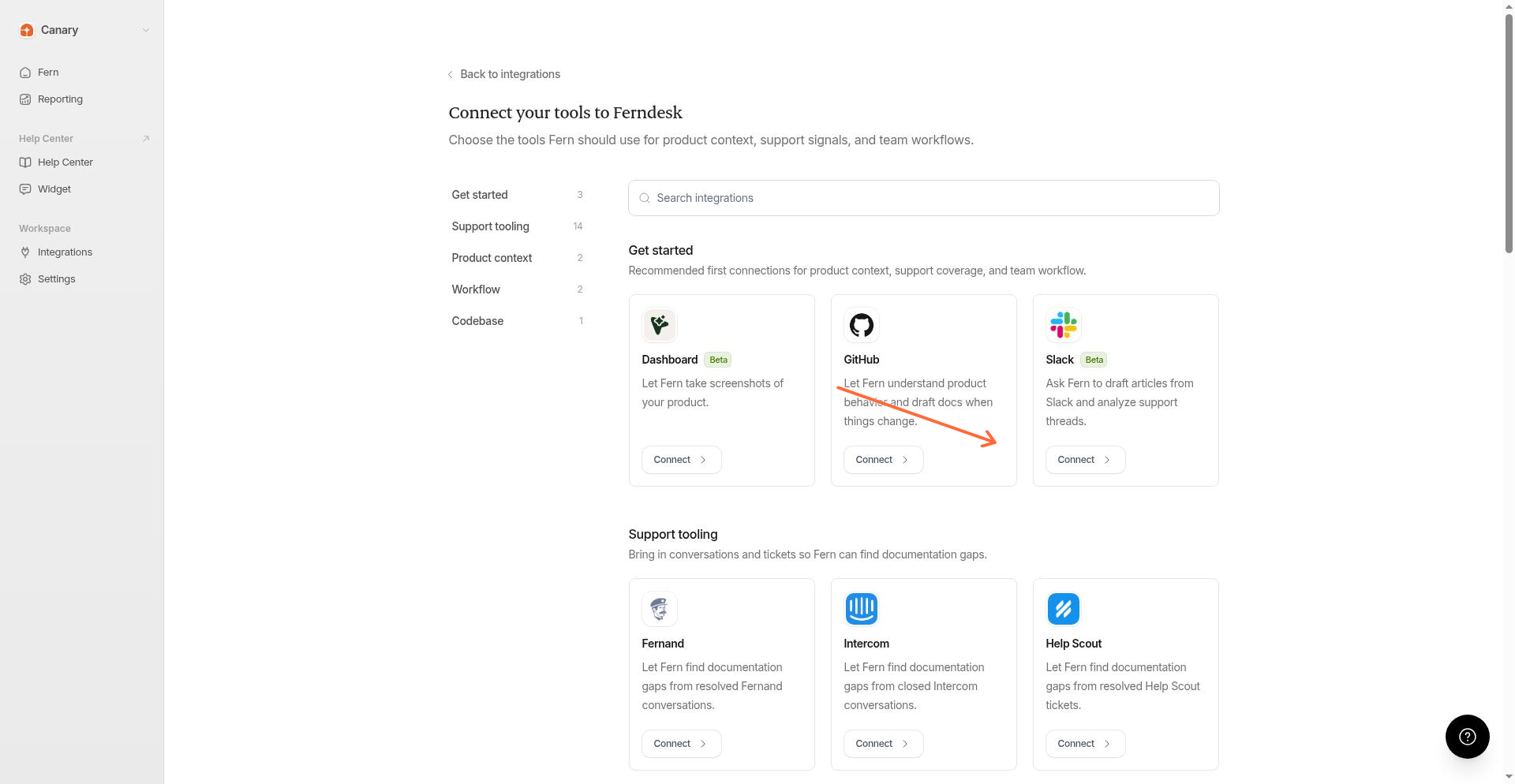
Go to the Integrations page in your Ferndesk dashboard.
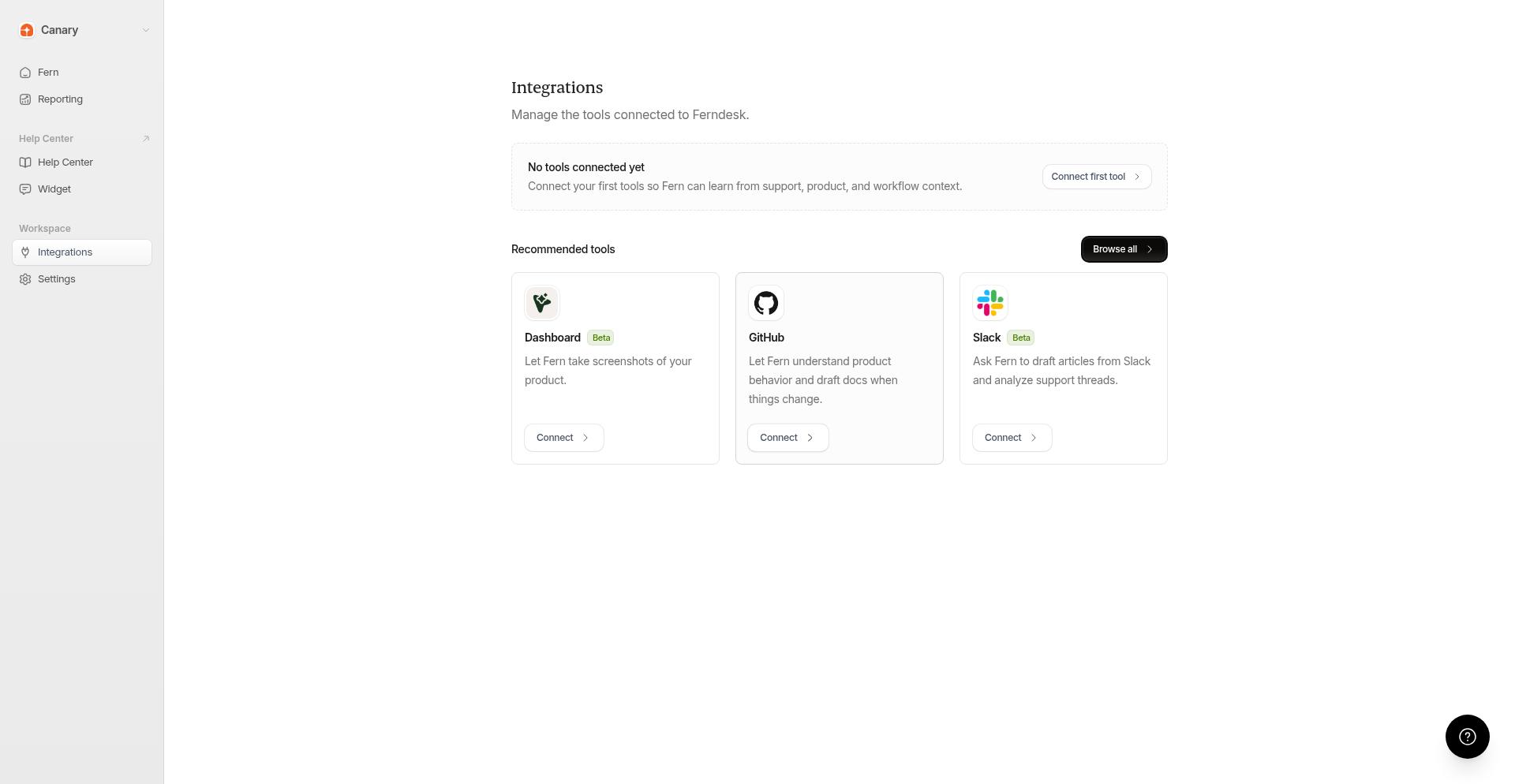
Find the Slack card and click Connect.
A Slack page opens asking you to select your workspace and approve permissions. This happens inside Slack, not in Ferndesk. You will see Ferndesk requests access to:
Read channel history and view thread context
Join channels and send messages
View user information
Click Allow to grant these permissions. Slack will redirect you back to Ferndesk automatically.
If you do not see the Slack authorization page, check whether your browser blocked the popup. The authorization page must load for the connection to complete.
After authorizing, you will return to Ferndesk with your Slack workspace connected. The integration page will show Connected with the time of the last sync.
Once connected, the Slack card shows a Manage connections button.
If you see 0 channels under Channel access, that is normal right after connecting. Fern has not joined any channels yet. Continue to Configure auto-join rules or Manage channel access to add channels.
Troubleshooting the connection
I see "Authentication required to connect Slack"
I see "Slack OAuth organization does not match the active session"
The Slack workspace you are authorizing belongs to a different organization than the one you are signed into in Ferndesk. Make sure you are:
Signed into the correct Ferndesk workspace
Authorizing the Slack workspace that corresponds to that Ferndesk organization
If you need to connect a different Slack workspace to a different Ferndesk organization, switch to that organization in Ferndesk first, then connect Slack.
I clicked Connect but did not see a Slack authorization page
Check whether your browser blocked the popup. Look for a notification in your browser's address bar and allow popups from Ferndesk. Then click Reconnect to try again.
Slack says I need admin approval
Some Slack workspaces require workspace admins to approve new app installations. When you click Allow, Slack will say the request has been sent for approval. Contact your Slack admin to approve the request, then return to Ferndesk and click Reconnect to complete the connection.
The connection shows but Channel access says 0 channels
This is normal after a fresh connection. Fern has not joined any channels yet. You can:
Add auto-join rules — Fern will automatically join channels matching name patterns. See Configure auto-join rules below.
Manually invite Fern to channels — In Slack, invite Fern to specific channels using
/invite @Fernor by adding Fern through the channel details. Then click Refresh in Ferndesk to sync.
I authorized Slack but Ferndesk still shows an error
Try clicking Reconnect on the Slack integration page. If the problem persists, disconnect and reconnect the integration from scratch.
Configure auto-join rules
Auto-join rules tell Fern which channels to join automatically. Rules match on channel name patterns, so Fern stays present in channels where support conversations happen.
From Integrations, click on your connected Slack workspace to open the detail page.
In the Auto-join channels section, click Add rule. Choose whether channel names should start with or end with a pattern, then enter the pattern (for example,
support-or-customers).Enable Join matching channels now to have Fern immediately join any existing channels that match the rule. Enable Use matching channels for support analysis to include conversations from these channels in Fern's support signals.
Rules apply to new channels automatically. When you create a channel that matches a rule, Fern joins it.
Manage channel access
The Channel access section shows every channel Fern can see in your workspace. From here you can refresh the list and control which channels contribute to support analysis.
Refresh — Sync the latest channel membership from Slack. The page shows when channels were last refreshed.
Support analysis toggle — Turn on Use for support analysis for any channel to include its threads in Fern's support signals.
Fern only sees channels where it is a member. For private channels, invite Fern to the channel in Slack first, then refresh in Ferndesk.
Channel visibility
Public — Visible to everyone in the workspace. Fern can join automatically based on rules.
Private — Visible only to invited members. Invite Fern to the channel in Slack using
/invite @Fernor through channel settings, then refresh in Ferndesk.
Create tasks from Slack
Once connected, you can create Ferndesk tasks directly from Slack conversations.
Mention Fern in a thread
Mention Fern in any Slack thread to create a documentation task. Fern adds a memo reaction to acknowledge the mention, then replies in the thread with a link to open the task in Ferndesk. This reply is visible to everyone in the thread.
If the thread context does not clearly indicate what documentation work is needed, Fern will ask you to specify the task.
Use the message shortcut
Select any Slack message and use the Send to Fern shortcut to create a task from that message. Fern creates the task without posting a reply in the thread, so the interaction stays private to you. You will receive a direct link to the new task.
Reconnect or disconnect
From the Slack integration detail page:
Reconnect — If the connection loses access or needs updated permissions, click Reconnect to refresh the OAuth token.
Disconnect — Remove the Slack integration from your Ferndesk workspace. You can confirm or cancel in the dialog.
If you installed the Slack app before support ingestion was added, reconnect to grant the additional permissions.
Was this helpful?