
How to invite your team
Invite team members to your Ferndesk workspace. Only workspace owners and admins can send invitations.
You must be a workspace owner or admin to invite team members.
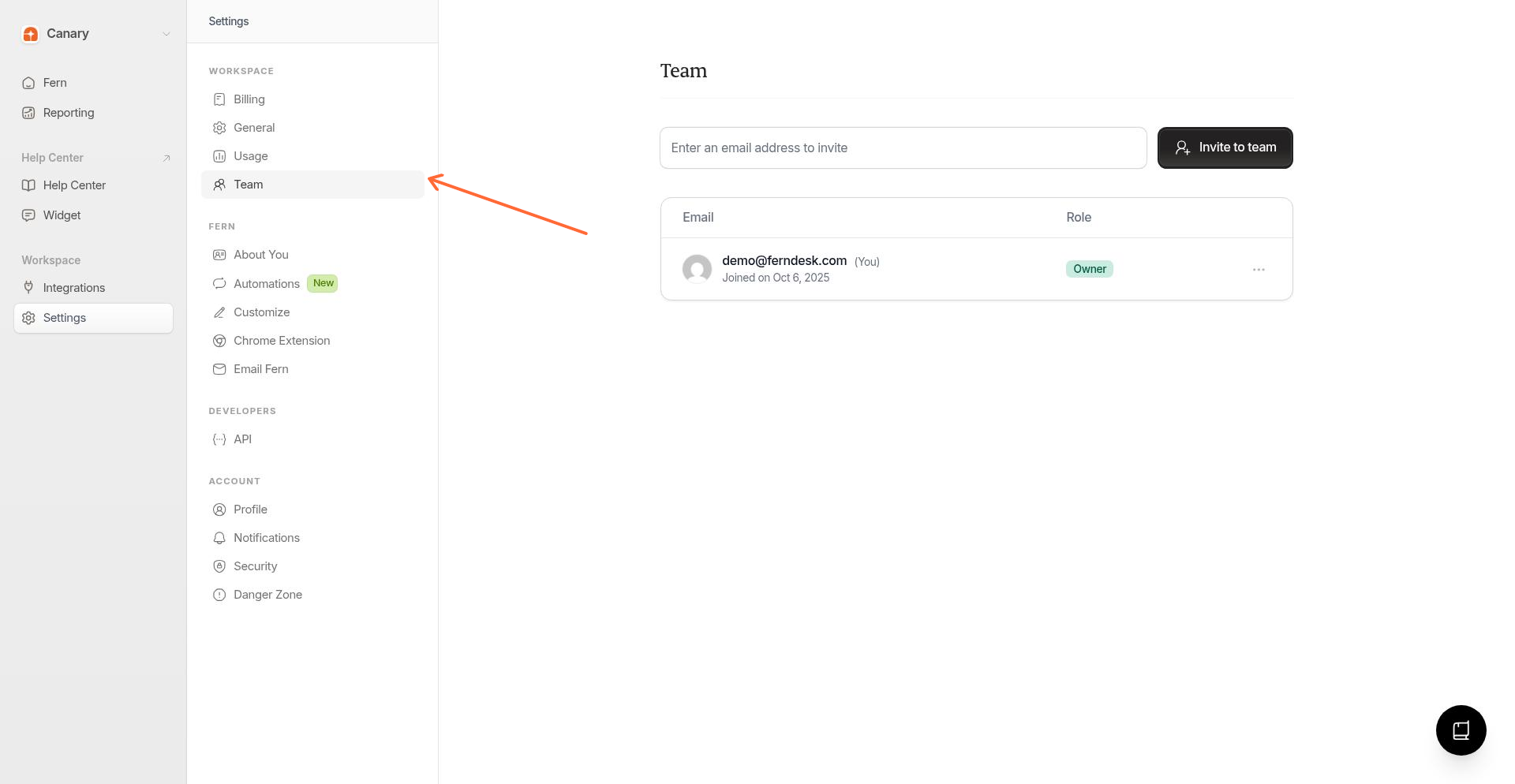
Go to Team settings
Click Settings in the sidebar, then select Team under Workspace.
Enter the email address
Type the email address of the person you want to invite.
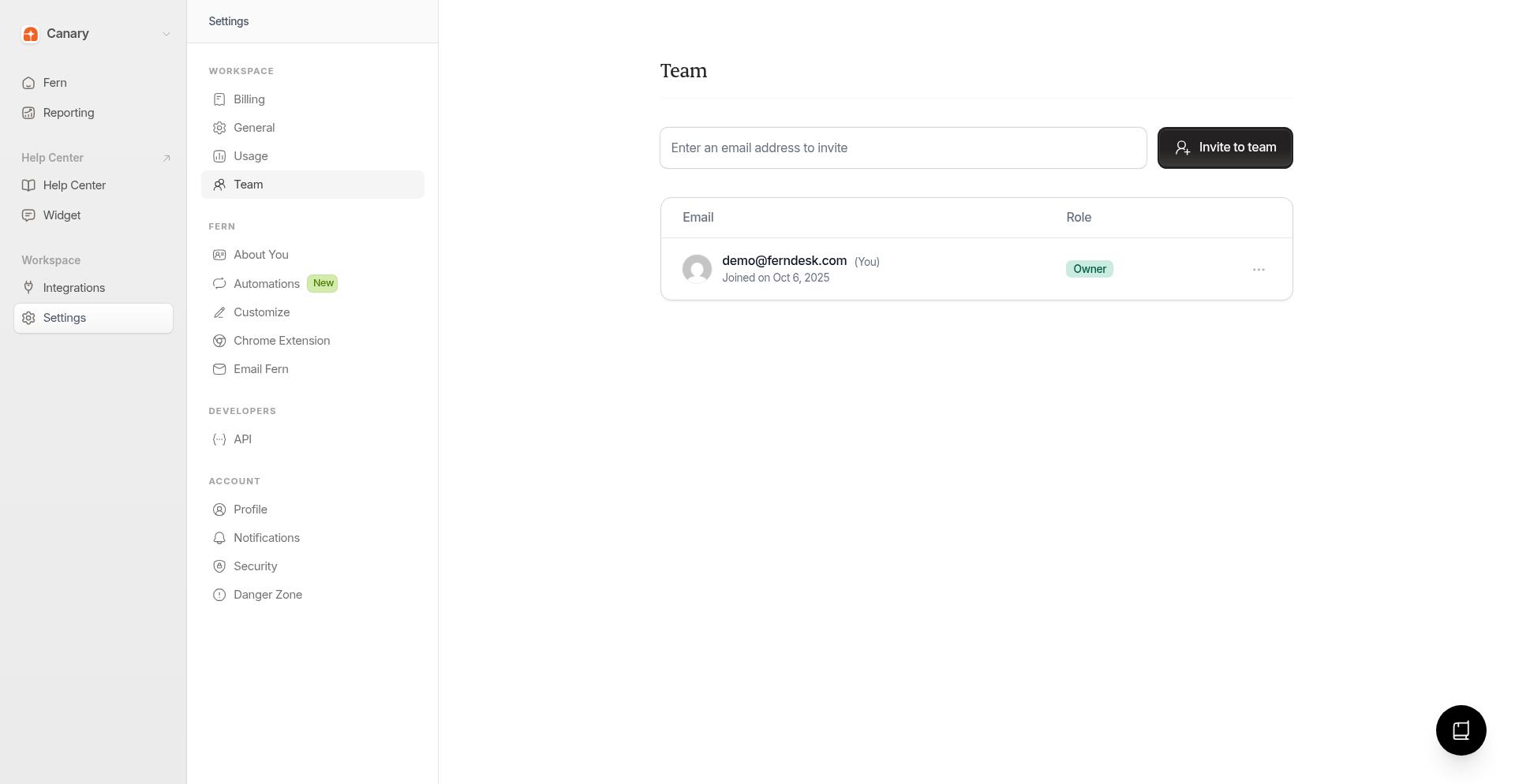
Send the invitation
Click Invite to team. The invitation is sent immediately.
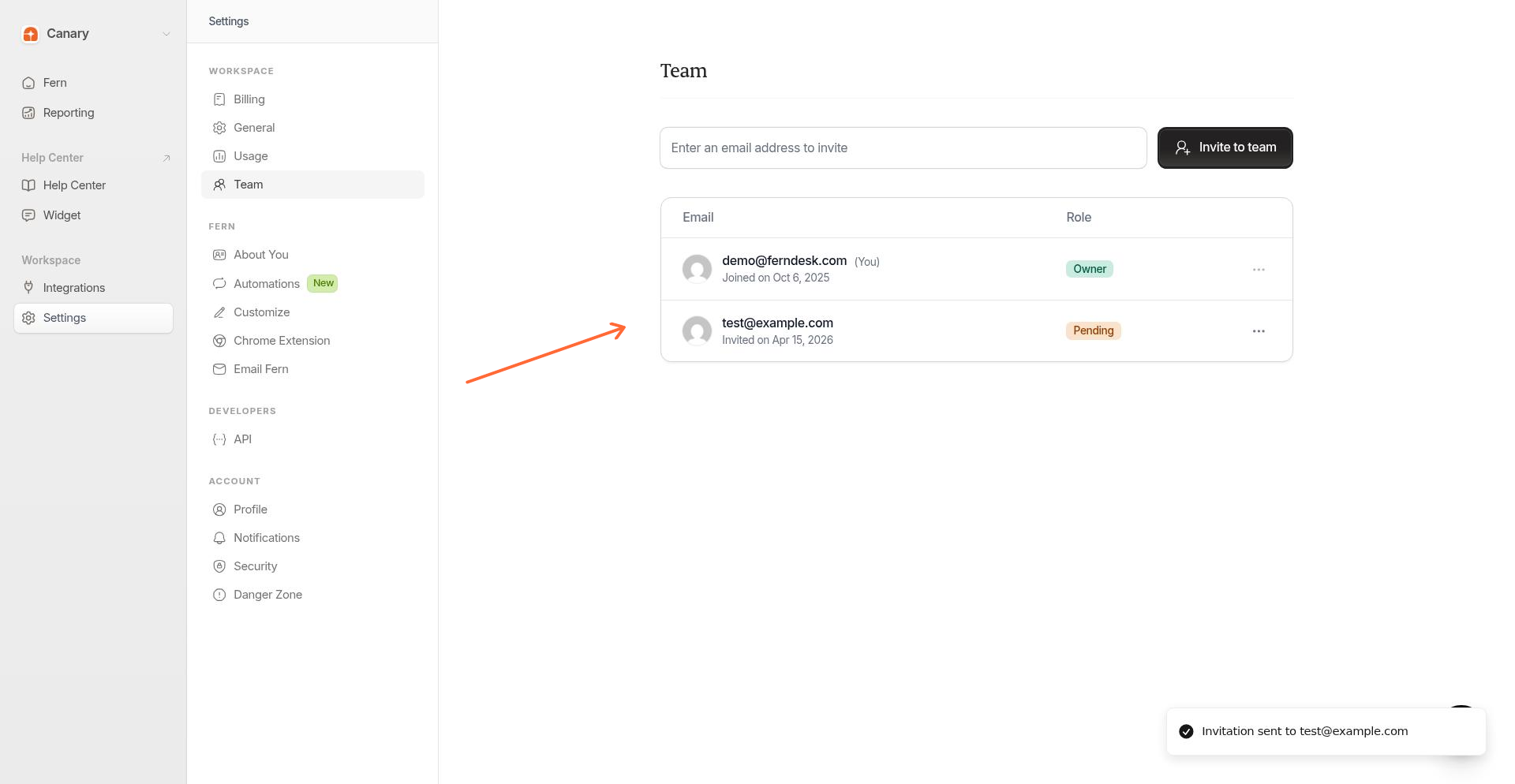
What happens after you send an invitation
When you send an invitation, the recipient receives an email with the subject Join [your workspace] on Ferndesk. The email contains a link that takes them to the accept-invite page.
Invited users show a Pending badge in your team list until they accept. Invitations expire after 2 days.
How invite acceptance works
The acceptance flow depends on whether the invited person already has a Ferndesk account:
Signed out: They are redirected to sign up, then taken back to accept the invitation.
Signed in: They see the acceptance form immediately.
After accepting, the invited workspace becomes their active workspace.
The email address used to sign up or sign in must match the invitation email address.
If you have a pending team invitation but want to create your own workspace first, you can choose Create separate workspace during onboarding and accept the invitation later.
Troubleshooting
Invitation not found - The invitation was deleted or the link is invalid.
Invitation no longer pending - The invitation was already accepted or declined.
Invitation expired - Invitations expire after 2 days. Send a new invitation.
Invitation belongs to a different email - Sign in with the email address that received the invitation.
Invitation limits
Invitations expire after 2 days
Only owners and admins can send and manage invitations
Your plan determines how many team members you can have. See Team member limits by plan for details.