
How to enable AI assistant answers
You can enable AI-powered answers in two locations: your help center and your embedded widget. Both use your knowledge base to answer customer questions, but can be enabled independently.
Before you begin
Make sure you have:
Admin or editor role in your Ferndesk account
At least one published article in your knowledge base
An empty knowledge base will cause the AI to respond with "I couldn't find information" for most queries. Publish core content before enabling.
Enable AI answers in your help center
Navigate to Help Center → Customize in your dashboard
Find the AI Answers section in the customization sidebar
Toggle Enable AI answers to ON
Preview the sparkles icon in the help center header
Click Save to apply your changes
Use the preview panel to see how the AI sparkles icon and panel appear before saving changes.
Enable AI answers in your widget
Navigate to Help Center → Widget in your dashboard
Click Customize to open the customization panel
Find the AI Assistant section in the sidebar
Toggle Enable AI answers to ON
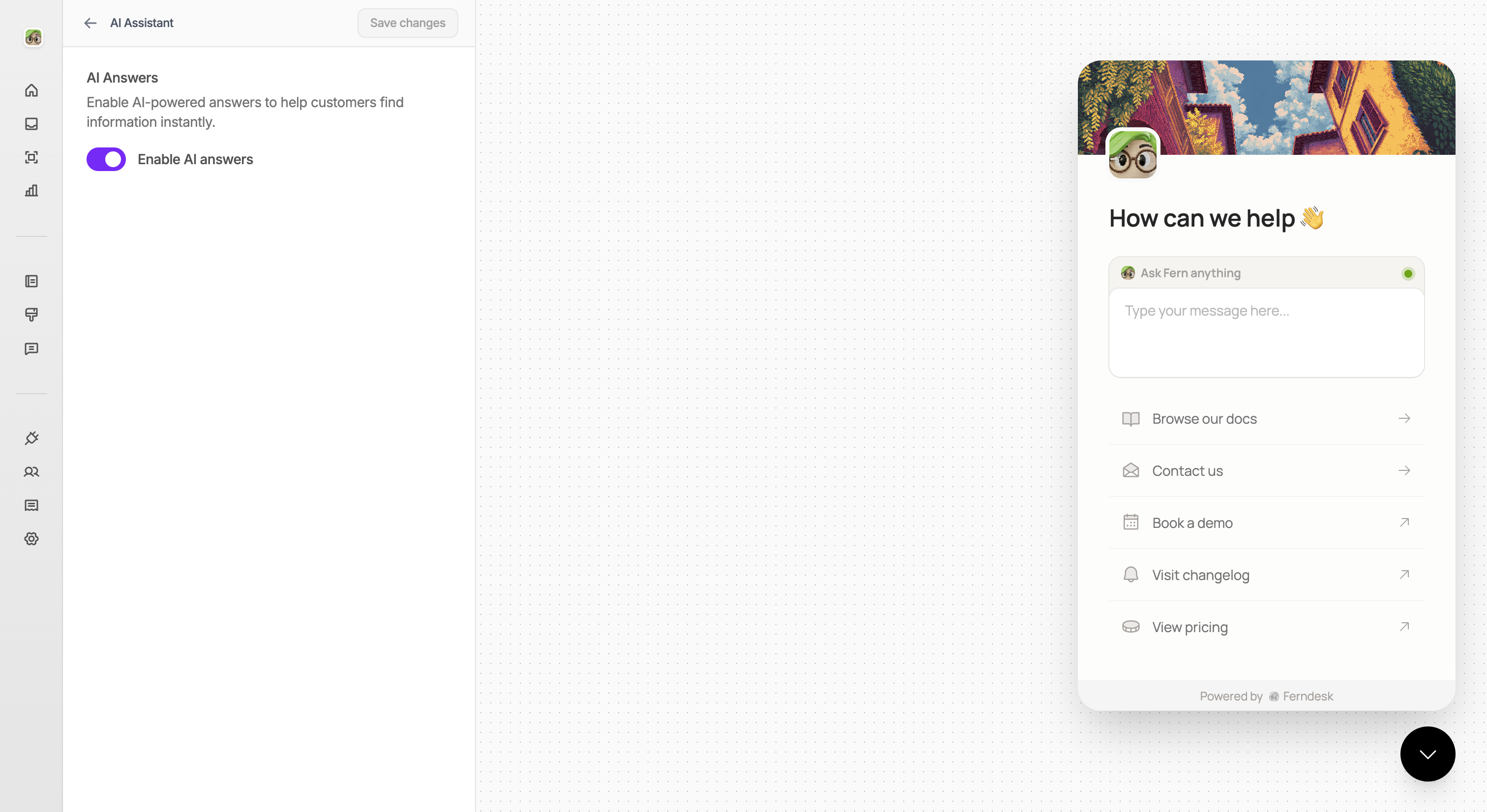
Click Save at the top of the panel
Make sure you've embedded the widget on your site before enabling AI features.
Using both together
You can enable AI answers in both your help center and widget to provide a consistent self-service experience across all touchpoints. Each can be enabled or disabled independently.
Related resources
How AI answers work — Content scope, citations, and answer generation
How to customize your help center — Complete customization guide including AI settings
Configure widget settings — Customize widget branding, contact methods, and AI features
Self-Service widget overview — Understand how the widget integrates with your site
AI escalation and handoff behavior — Configure when the assistant offers contact options
More resources
AI assistant troubleshooting — Fix common AI assistant issues