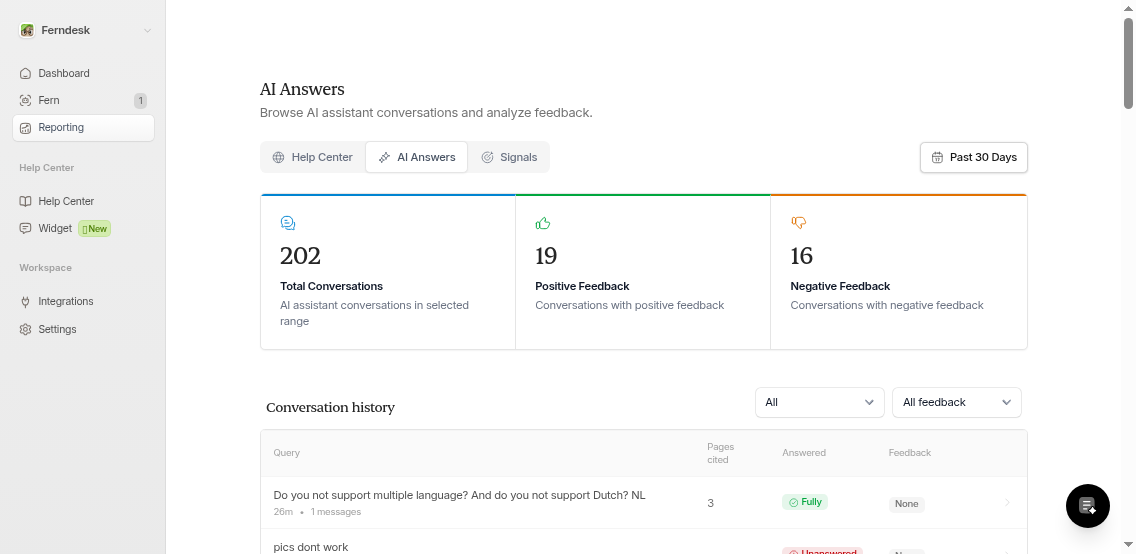
Analytics helps you understand how users interact with your help center. Track visitor behavior, article performance, search trends, and user feedback to identify content gaps and optimize your help center.
How to Access Analytics
From your Ferndesk dashboard, expand Help Center in the left sidebar, then click Analytics.
You'll land on the Overview tab by default.
Use the date range picker in the top right to filter data for a specific period (defaults to the past 30 days).
Analytics is available for Ferndesk-hosted help centers. External help centers (Zendesk, Help Scout) are not supported.
Using the Date Range Picker
The date range picker in the top right corner lets you filter analytics data for specific time periods. All metrics, charts, and tables update automatically when you change the date range.
Quick preset options:
Today: Data from the current day only.
Yesterday: Data from the previous day.
Past 7 Days: Rolling week of data.
Past 14 Days: Two-week rolling period.
Past 30 Days: Default view showing the last month (30 days).
Month to Date: From the 1st of the current month to today.
Last Month: Full previous calendar month.
Past Quarter: Last 90 days of data.
Past Year: Rolling 12-month view.
Custom date ranges:
You can also select custom start and end dates by clicking the date fields and choosing from the calendar picker. This is useful for comparing specific campaign periods or measuring improvements after content updates.
Use custom date ranges to compare performance before and after major content updates. For example, set the range to the two weeks following a documentation refresh to measure impact.
Understanding the Four-Tab Layout
Analytics is organized into four specialized tabs, each focusing on a different aspect of your help center performance. Switch between tabs to access different views and insights.
Overview Tab
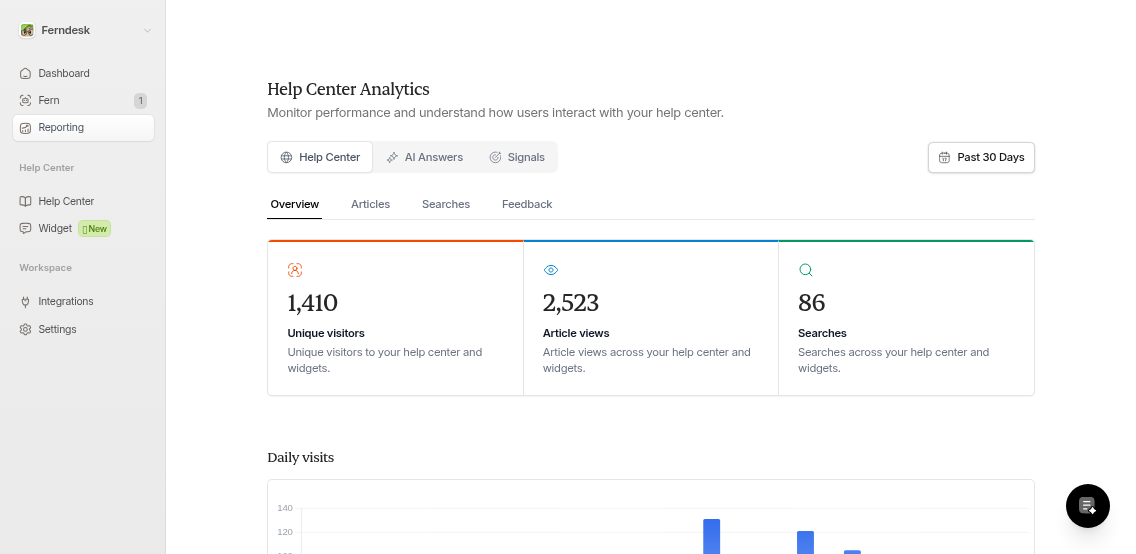
Get a high-level view of your help center's performance and visitor engagement.
Key metrics:
Unique visitors: Total unique visitors to your help center and embedded widgets.
Article views: Total views across all your articles.
Searches: Total search queries performed in your help center.
Daily visits chart: A bar graph showing visitor trends over your selected date range. Use this to spot traffic patterns, identify peak usage days, and measure growth over time.
Most viewed articles: A table showing your top-performing articles with view counts. Click View more to navigate to the full Articles tab.
The Overview tab is perfect for quick health checks. Review it weekly to spot unusual traffic drops or spikes that might indicate technical issues or successful content launches.
Articles Tab
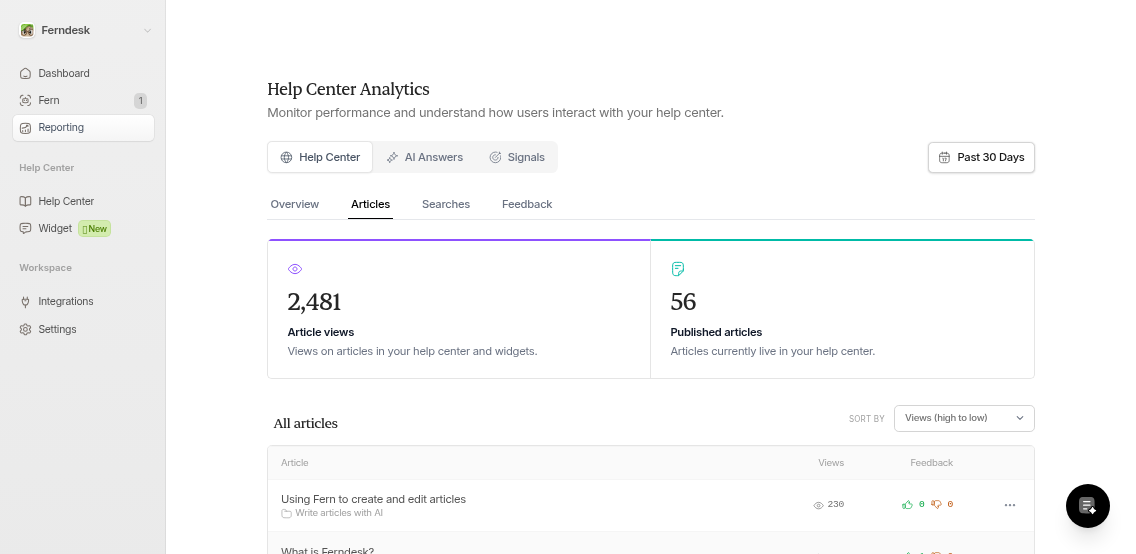
Monitor how individual articles are performing and which ones need attention.
Key metrics:
Article views: Total views on articles in your help center and widgets.
Published articles: Current number of live articles in your help center.
All articles table: View every article with the following data:
Article title and collection folder
View count
Feedback reactions: upvotes and downvotes
Sort options:
Views (high to low): Default sort showing most-viewed articles first.
Reactions (high to low): Shows articles with the most user feedback.
Hover over any row to reveal quick actions:
Ask Fern to edit article: Have Fern AI suggest improvements based on performance data.
Edit manually: Open the article editor to make changes yourself.
View live article: Preview the published article.
Articles with high view counts but low positive reactions may need clarity improvements. Use the "Ask Fern to edit article" feature to get AI-powered suggestions for fixing confusing content.
Searches Tab
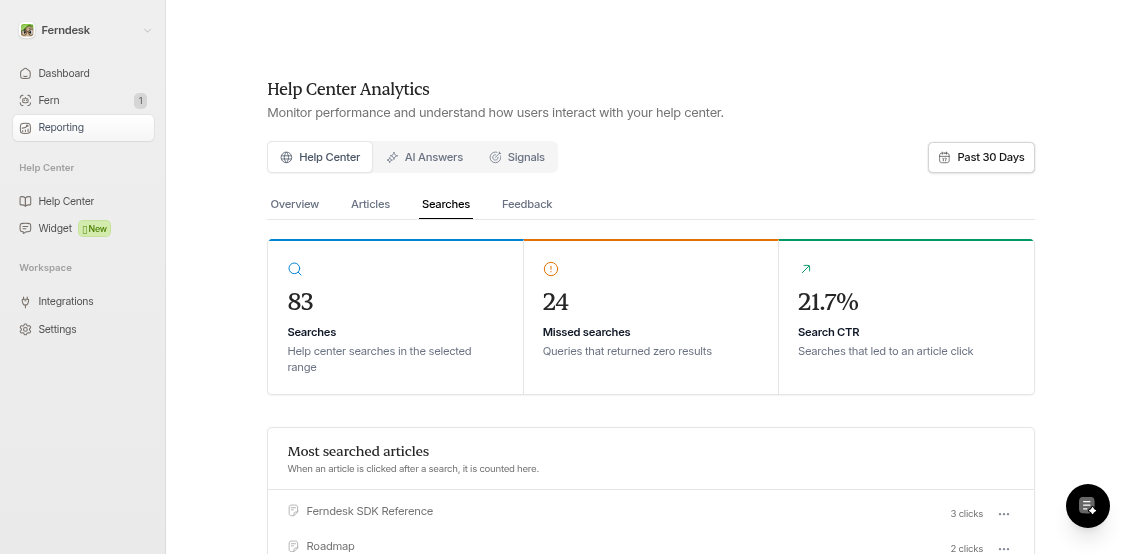
Understand what users are searching for and identify gaps in your content.
Key metrics:
Searches: Total search queries in your help center for the selected date range.
Missed searches: Queries that returned zero results—these highlight content gaps.
Search CTR: The percentage of searches that led to an article click.
Most searched articles: Shows articles that users clicked on after a search, ranked by click count. This helps you understand which existing content is discoverable through search.
Top searches table with filters:
All searches: Every search query performed (default view).
Hit: Searches that returned results (marked with a green badge).
Miss: Searches with zero results (marked with an amber badge).
For each query, you'll see:
Search query text (exact words users typed)
Status badge (Hit or Miss)
Number of times searched
Last searched timestamp
Missed searches are your highest-priority content gap signals. Frequently repeated missed searches indicate strong user need. Create new articles to address them, or improve existing article titles and keywords to match these queries.
Feedback Tab
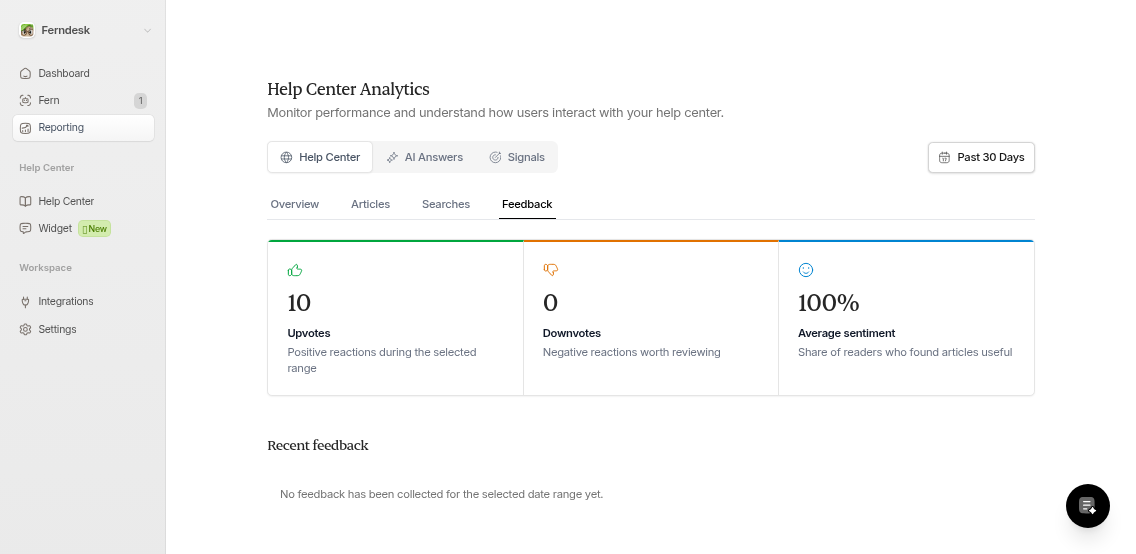
Review all user reactions to your articles, including both positive and negative feedback.
Key metrics:
Upvotes: Positive reactions received during the selected date range.
Downvotes: Negative reactions—articles worth reviewing for clarity or accuracy.
Average sentiment: The percentage of readers who found articles useful.
Recent feedback list: See all feedback sorted by recency:
User email (click to copy) or "Anonymous"
Feedback message (if the user left a comment)
Sentiment badge (green for positive, amber for negative)
Article title (linked to the article)
Timestamp
Hover over any feedback to reveal action options:
Ask Fern to edit article: Get AI suggestions to fix issues the user raised.
Edit manually: Make targeted edits yourself.
View live article: See the article in your help center.
Delete feedback: Remove the feedback entry (displayed in red).
Positive feedback on an article is a signal that it's helping users effectively. Use these high-performing articles as templates when creating similar content for related topics.
Using Analytics to Improve Your Help Center
Find Content Gaps
Navigate to the Searches tab and filter by Miss to identify what users are looking for but can't find. Prioritize creating articles for high-frequency missed searches—this shows strong user demand.
Click the Searches tab
Select Miss from the filter options
Sort by search count to find the most common missed queries
Create new articles addressing these topics
Fix Underperforming Articles
In the Articles tab, look for high-view articles with low positive reactions. These may be confusing, incomplete, or outdated.
Click the Articles tab
Sort by Views (high to low) to find popular articles
Look for articles with high views but few upvotes or many downvotes
Hover over the article row and click Ask Fern to edit article for AI improvement suggestions
A good benchmark: if an article has more than 100 views but fewer than 5% positive reactions, it likely needs improvement.
Respond to User Feedback
Review recent feedback in the Feedback tab and act on downvotes quickly. Direct criticism helps you pinpoint exactly what's confusing users.
Click the Feedback tab
Review recent negative feedback (amber badges)
Read the user's feedback message to understand the issue
Use Ask Fern to edit article or Edit manually to fix the problem immediately
Addressing negative feedback quickly improves user trust and reduces related support tickets.
Boost Article Discoverability
If an existing article should have matched a missed search, update its title, keywords, or summary to improve visibility.
Check the Searches tab to see which queries users tried
Identify relevant existing articles that didn't appear in search results
Edit those articles to include the exact terms users searched for
Update titles, headings, and the first paragraph with these keywords
Return to the Searches tab after a few days to verify that the searches now return results (Hit status).
Track Progress Over Time
Return to the Overview tab regularly to monitor visitor trends and top articles. Use the date range picker to compare different periods.
Select Past 30 Days to see current performance
Note key metrics (unique visitors, article views, searches)
Change to a previous period (e.g., select a custom range for the prior 30 days)
Compare the metrics to measure improvement
Set a regular cadence for analytics review—weekly is ideal. This lets you catch issues early and measure the impact of content improvements in near real-time.
Tips for Success
Check analytics weekly: Set a regular schedule to review new missed searches and feedback so you can act quickly.
Use Fern for efficiency: Let Fern AI suggest edits for flagged articles instead of rewriting from scratch.
Sort by reactions: In the Articles tab, switch to "Reactions (high to low)" to find articles most in need of improvement.
Copy feedback emails: Click a user's email to copy it to clipboard—useful for reaching out to users who left detailed feedback.
Adjust date ranges strategically: Narrow your date range to focus on recent trends, or expand it to spot long-term patterns.
Focus on missed searches first: These represent the clearest content gap signals and often have the highest ROI.
Monitor empty states: If you see "No analytics data available for the selected date range yet" in any tab, try expanding your date range or wait for more traffic.
What's Next
Learn how to create and manage articles based on your analytics insights.
Explore SEO best practices to improve article discoverability.
Use embedded widgets to track analytics from external sites.