Customize your help center's typography to match your brand guidelines by adding custom fonts from Google Fonts, or self-hosted sources.

Using the Typography Picker (Google Fonts Only)

For quick access to Google Fonts, use the built-in Typography picker:

  1. Expand Help Center in the sidebar, then click Customize

  2. Open the Branding panel

  3. Scroll to the Typography section

  4. Select a font family for Heading font or Body font

  5. Click Advanced Options to choose specific font weights (Thin to Black)

  6. Click Save changes

The Typography picker only supports Google Fonts. For Adobe Fonts, custom fonts, or more control over styling, use the Head Code method below.

Adding Custom Fonts via Head Code

For non-Google fonts or advanced customization, inject font embed codes directly into your help center:

Step 1: Find Your Font and Get the Embed Code

Google Fonts:

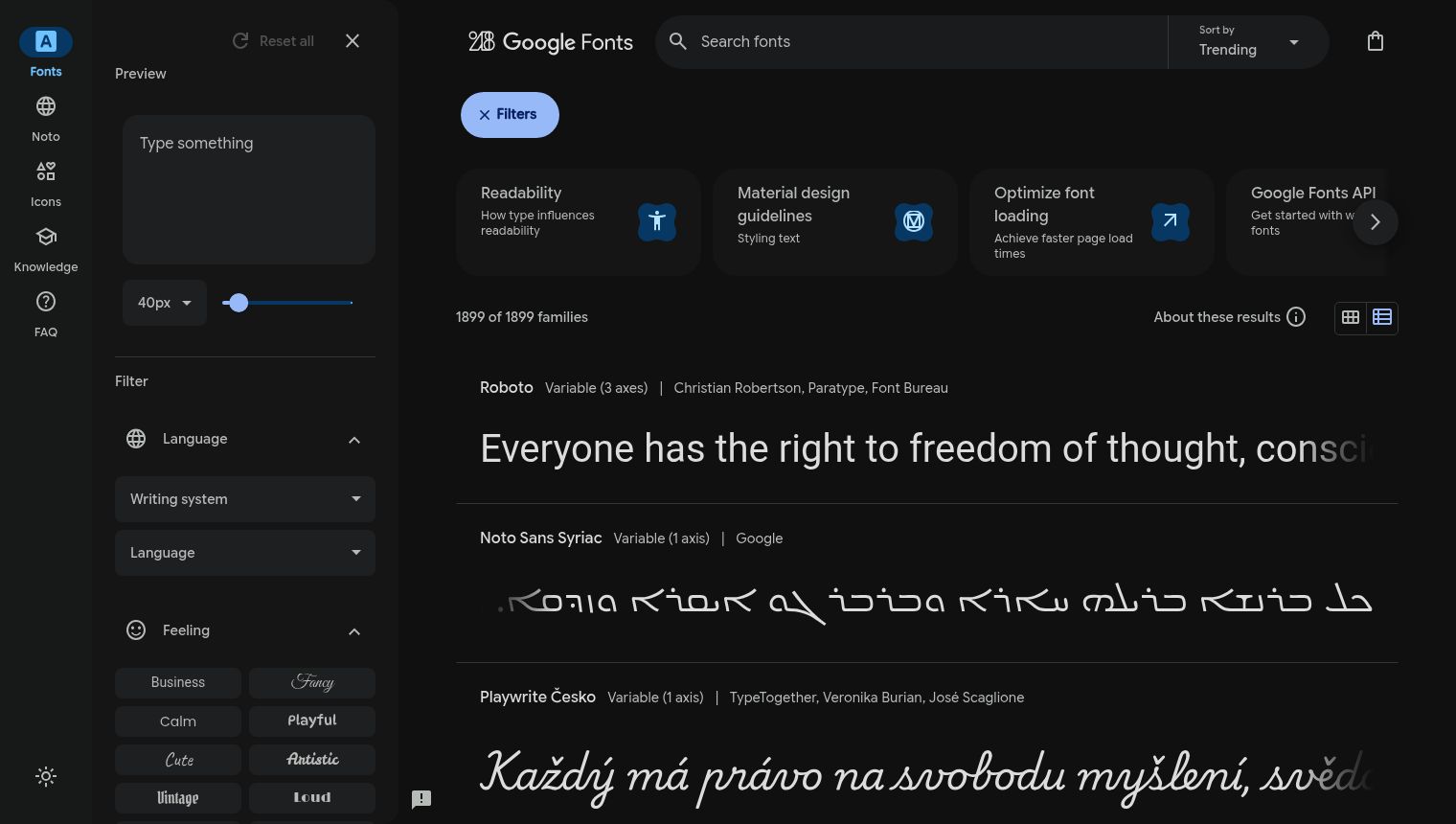
  1. Visit Google Fonts

  2. Browse or search for your desired font

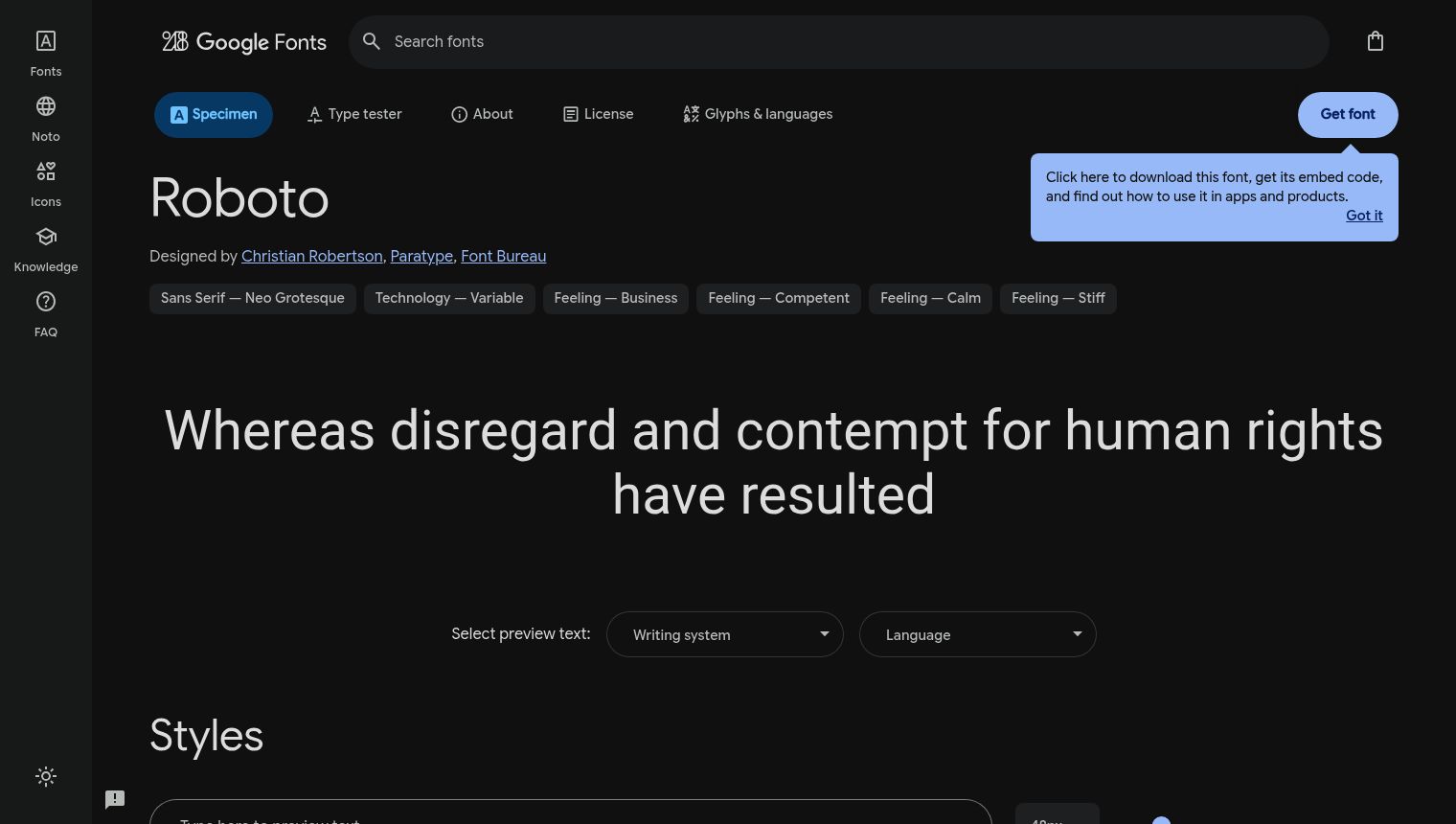
  3. Click on the font name to view its detail page

  4. Click the Get font button

  5. Copy the <link> embed code provided

The image displays a dark-themed 'Google Fonts' interface, divided into three main sections: a left sidebar, a top navigation/search bar with additional filter options, and the main content area showcasing font previews. The UI elements are generally well-defined, and the text visibility is good due to the high contrast between white text and the dark background. The left sidebar features a primary navigation with icons and text labels including 'Fonts', 'Noto', 'Icons', 'Knowledge', and 'FAQ'. Below these are 'Preview' and 'Filter' sections. The 'Preview' section contains a text input field labeled 'Type something' and a font size selector, currently set to '40px', with an accompanying slider. The 'Filter' section includes collapsible categories for 'Language', 'Writing system', and 'Feeling'. Under 'Feeling', there are various interactive buttons to filter font styles such as 'Business', 'Fancy', 'Calm', 'Playful', 'Cute', 'Artistic', 'Vintage', and 'Loud'. At the very bottom left, there's a sun/moon iconography, likely indicating a light/dark mode toggle. The top bar clearly displays 'Google Fonts' branding on the left, a 'Search fonts' input field with a magnifying glass icon in the center, and 'Sort by Trending' dropdown, and a shopping bag icon on the far right. Below the search bar, a blue 'X Filters' button is visible, indicating an active filter. To the right of the search field and below the 'X Filters' button, a horizontal scrolling section presents cards with information like 'Readability', 'Material design guidelines', 'Optimize font loading', and 'Google Fonts API'. A right arrow icon suggests more cards are available. The main content area states '1899 of 1899 families' and 'About these results' with grid and list view icons. The primary function of the page is to display various font families. Each font entry shows the font name (e.g., 'Roboto', 'Noto Sans Syriac', 'Playwrite Česko'), its variable axis information, and the designer/foundry. Below each font's metadata, a preview of example text, \
The image displays a dark-themed Google Fonts webpage, showcasing the 'Roboto' font. The top left corner features a sidebar with navigation icons and text labels such as 'Fonts', 'Noto', 'Icons', 'Knowledge', and 'FAQ'. Below these, there's a sun icon, presumably for a light/dark mode toggle. The top navigation bar includes the Google Fonts logo, a search bar labeled 'Search fonts', and a shopping bag icon on the far right. Prominently displayed below the top navigation are tabs for 'Specimen' (currently active), 'Type tester', 'About', 'License', and 'Glyphs & languages'. The main section highlights the 'Roboto' font name in a large, bold typeface. Below the font name, it states 'Designed by Christian Robertson, Paratype, Font Bureau', with these names serving as clickable links. A row of gray button-like tags describes the font's characteristics: 'Sans Serif - Neo Grotesque', 'Technology - Variable', 'Feeling - Business', 'Feeling - Competent', 'Feeling - Calm', and 'Feeling - Stiff'. To the right of the font name, a blue button labeled 'Get font' is visible. Overlapping this button is a light blue information bubble, explaining: 'Click here to download this font, get its embed code, and find out how to use it in apps and products.' Within this bubble, 'Got it' is a clickable link. A large text sample in the Roboto font reads: 'Whereas disregard and contempt for human rights have resulted'. Below this, there are options to 'Select preview text:' with a dropdown for 'Writing system' and another for 'Language'. Further down, a section titled 'Styles' is introduced in a large font. At the very bottom, a text input field is present, likely for users to type their own preview text.

Adobe Fonts example:

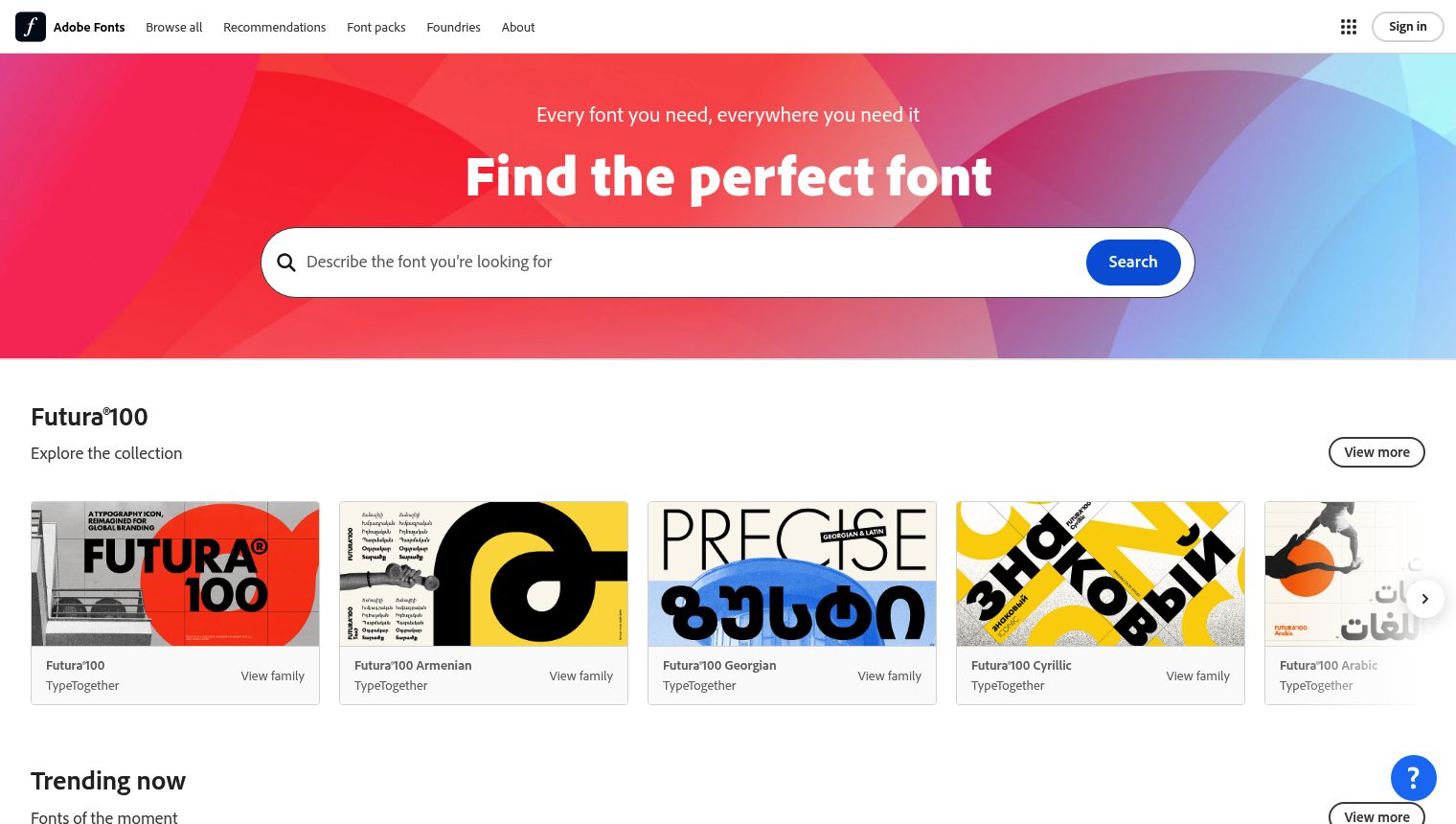
  1. Visit Adobe Fonts and sign in

  2. Browse fonts and add them to a web project

  3. In your web project settings, copy the <link> embed code

The screenshot displays the Adobe Fonts homepage, characterized by a clean and modern design with a dominant red and blue gradient background in the hero section. The top navigation bar, set against a white background, features the \

Self-Hosted Fonts:

Create a @font-face rule referencing your font files:

<style>
@font-face {
  font-family: 'CustomFont';
  src: url('https://yoursite.com/fonts/customfont.woff2') format('woff2'),
       url('https://yoursite.com/fonts/customfont.woff') format('woff');
  font-weight: normal;
  font-style: normal;
}
</style>

Use WOFF2 and WOFF formats for best browser compatibility and performance. Host font files on a reliable CDN or your own server.

Step 2: Add the Embed Code to Head Code

  1. Expand Help Center in the sidebar, then click Customize

  2. Open the Advanced panel

  3. Locate the Custom head code editor

  4. Paste your font embed code (the <link> tag or <style> block from Step 1)

  5. Click Save changes

The Head Code editor does not validate syntax before saving. Test your code carefully to avoid breaking your help center styling.

Step 3: Apply the Font via CSS

After embedding the font, add CSS rules to apply it to specific elements:

<style>
/* Apply custom font to all headings */
h1, h2, h3, h4, h5, h6 {
  font-family: 'Your Font Name', sans-serif;
}

/* Apply custom font to body text */
body, p {
  font-family: 'Your Font Name', serif;
}
</style>

Add this CSS to the same Custom head code editor, either within the same <style> block as your @font-face declaration or in a separate block.

Changes take effect immediately after saving. Visit your live help center to confirm the fonts display correctly.

Troubleshooting

Fonts not loading:

  • Verify the embed code syntax is correct (no missing quotes or brackets)

  • Check that font URLs are publicly accessible (CORS-enabled for self-hosted fonts)

  • Ensure font family names in CSS match exactly (case-sensitive)

Typography picker shows "Unable to load fonts":

  • Refresh the page and try again

  • Use the Head Code method as an alternative

Save configuration failed:

  • Check for syntax errors in your Head Code

  • Remove recently added code and try saving again to isolate the issue

Best Practices

  • Limit font weights: Only load the font weights you actually use to improve page load speed

  • Use font-display: Add font-display: swap; to prevent invisible text during font loading

  • Test across devices: Verify fonts render correctly on desktop and mobile browsers

  • Provide fallback fonts: Always specify generic fallbacks (e.g., sans-serif, serif) in your font-family declarations

Additional Resources

Was this helpful?