
Connect a custom domain to your help center
Hosting your help center on your own domain builds trust with customers, improves SEO, and maintains brand consistency. Subdomains like help.yourcompany.com are the recommended approach.
Before you begin: You'll need admin access to both Ferndesk and your DNS provider (GoDaddy, Namecheap, Cloudflare, Route 53, etc.).
Set up your custom domain
1. Add the domain in Ferndesk
Go to Help Center → Customize → Custom domain.
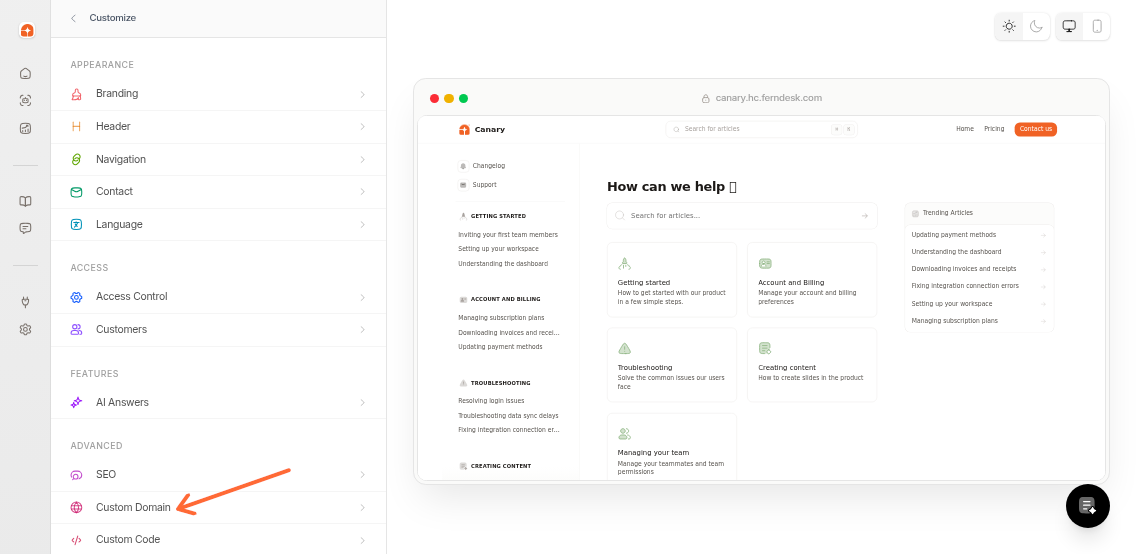
Enter your subdomain (e.g., help.yourcompany.com) in the input field.
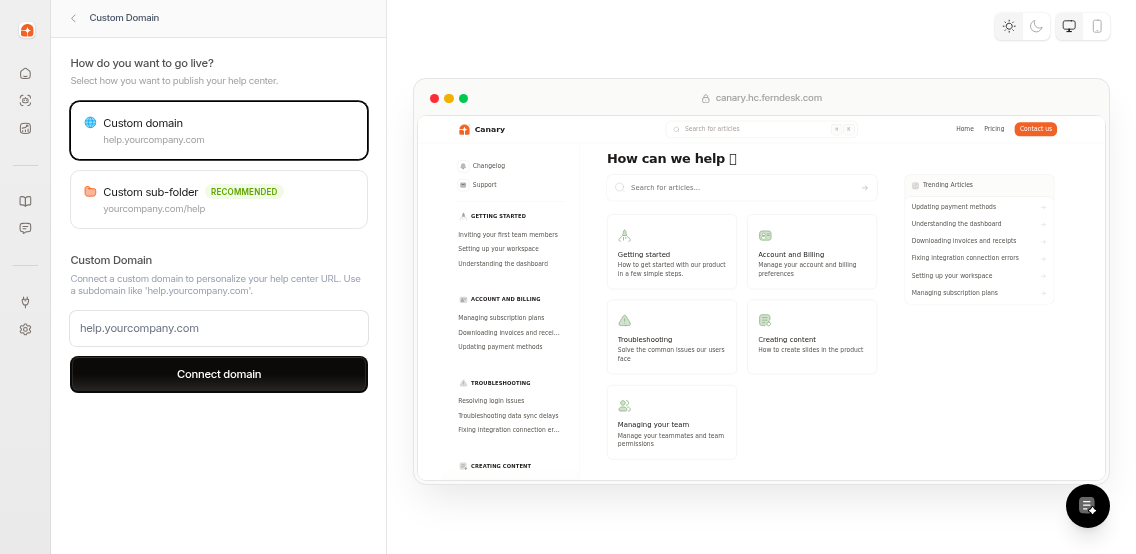
Click Connect domain. The status will show as "pending" with DNS configuration details.
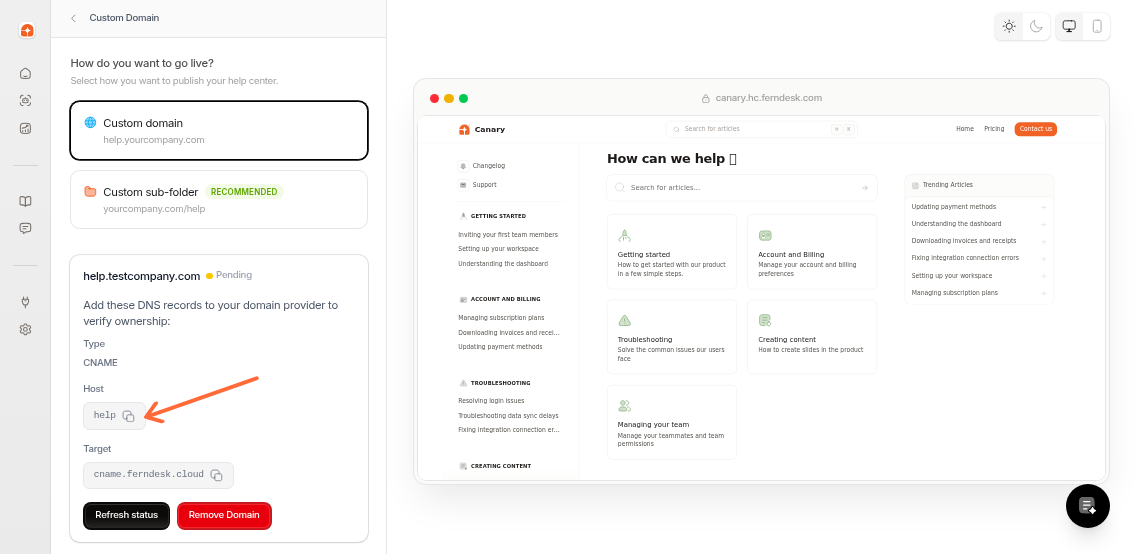
2. Add the CNAME record
In your DNS provider's dashboard, create a CNAME record with these values:
Type | Value |
|---|---|
CNAME | Host: |
Target: |
Use the copy buttons in Ferndesk to avoid typos. Some DNS providers require a trailing dot on the target (e.g., cname.ferndesk.cloud.).
DNS propagation takes 24–48 hours. Your domain remains in "pending" status until Ferndesk detects the record.
3. Verify activation
Return to Help Center → Customize → Custom domain and click Refresh status.
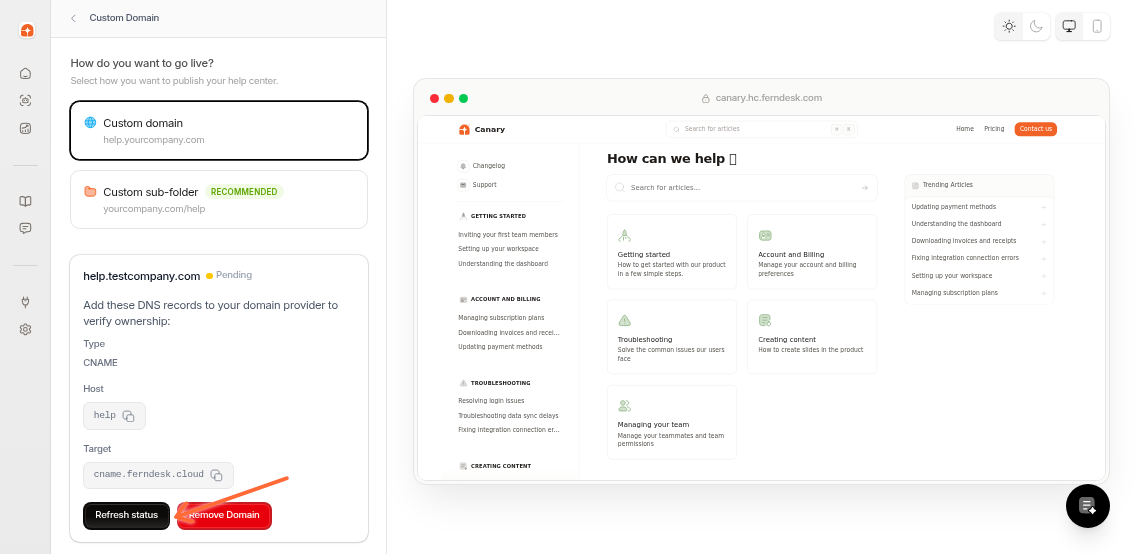
Once DNS propagates, the status changes to "active" and your help center is live at your custom domain.
Common issues
Problem | Cause | Solution |
|---|---|---|
Domain stuck on "pending" after 48 hours | DNS record not found or incorrect | Verify the CNAME host and target match exactly. Check for typos and trailing dots as required by your provider. |
"Domain already in use" error | Another Ferndesk workspace uses this domain | Choose a different subdomain or contact support if this is an error. |
"Use a subdomain" error | Root domain entered (e.g., | Use a subdomain like |
"Invalid domain" error | Domain format is incorrect | Check for typos. Domains must include a dot and follow standard DNS naming rules. |
Remove your custom domain
To revert to the default Ferndesk URL, go to Help Center → Customize → Custom domain and click Remove Domain. Update any shared links or bookmarks after removing.
Note: Ferndesk automatically provisions SSL certificates and only supports CNAME records. Root domains are not supported.
Next steps
Once your custom domain is active, customize your branding and configure SEO settings to maximize search visibility.