
Authentication Overview
Authentication lets you control who can access your help center. You can restrict your entire knowledge base to authorized users, make specific articles private, or keep everything public while identifying logged-in readers for analytics and personalization.
Authentication is available on Team and Enterprise plans. Upgrade from your dashboard to enable private help centers.
Why Use Authentication
Common use cases for help center authentication:
Protect sensitive documentation: Keep competitive information, internal processes, or enterprise features private from public view
Embed authenticated help in your app: Show contextual docs to logged-in users without requiring separate sign-in
Separate public and private content: Publish marketing/support content publicly while restricting internal or customer-specific articles
Authentication Options
Ferndesk supports three authentication methods. You can enable multiple options simultaneously.
Magic Links
Passwordless email authentication. Users enter their email address and receive a one-time sign-in link. Best for simple access control without managing identity providers.
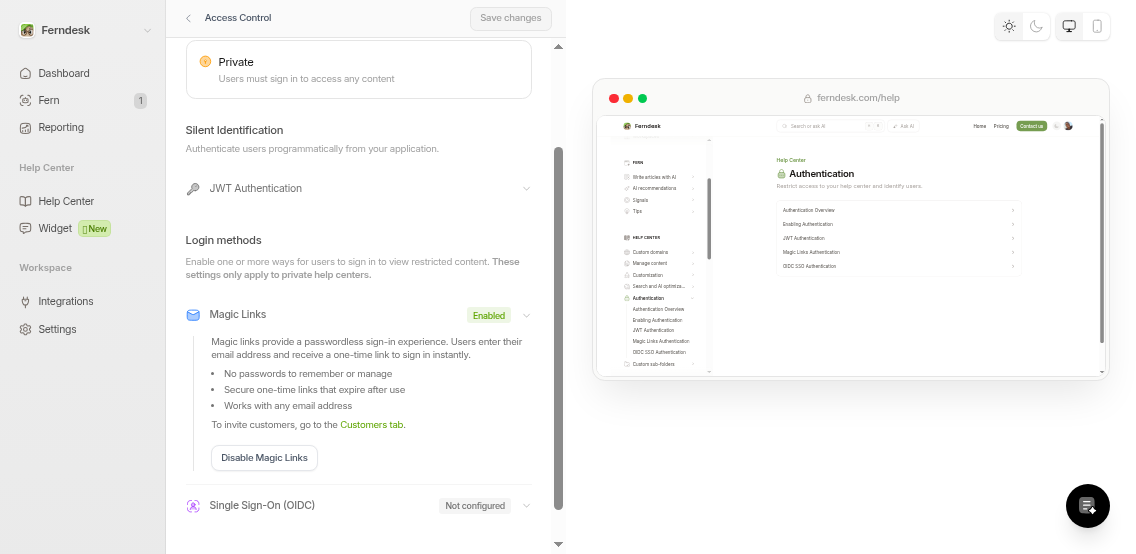
Magic links work great for small teams or when you want low-friction authentication without SSO setup. Learn how to set up Magic Links.
OIDC SSO
Single sign-on via OpenID Connect providers like Okta, Auth0, Azure AD, or Google Workspace. Users click a branded button and authenticate through your identity provider.
Requires configuration:
Discovery URL from your OIDC provider
Client ID and client secret
Scopes (typically openid, profile, email)
Custom button label (e.g., "Sign in with Okta")
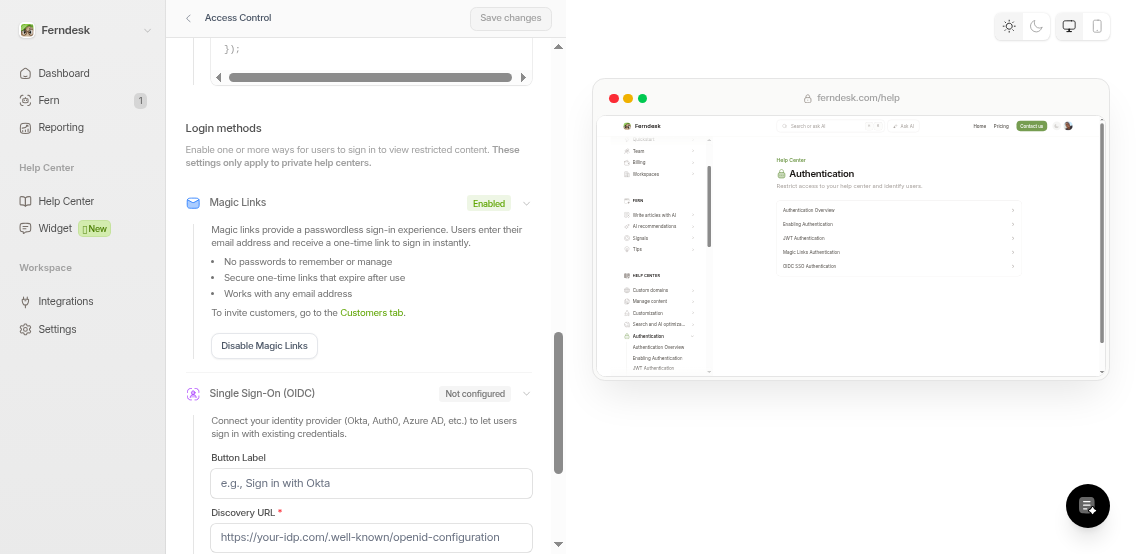
See the OIDC SSO Authentication guide for step-by-step setup instructions.
JWT (Programmatic)
Token-based authentication for embedding help centers in your application. Your backend generates signed JWT tokens containing user identity claims (email, name, unique ID). Best for seamless in-app documentation experiences.
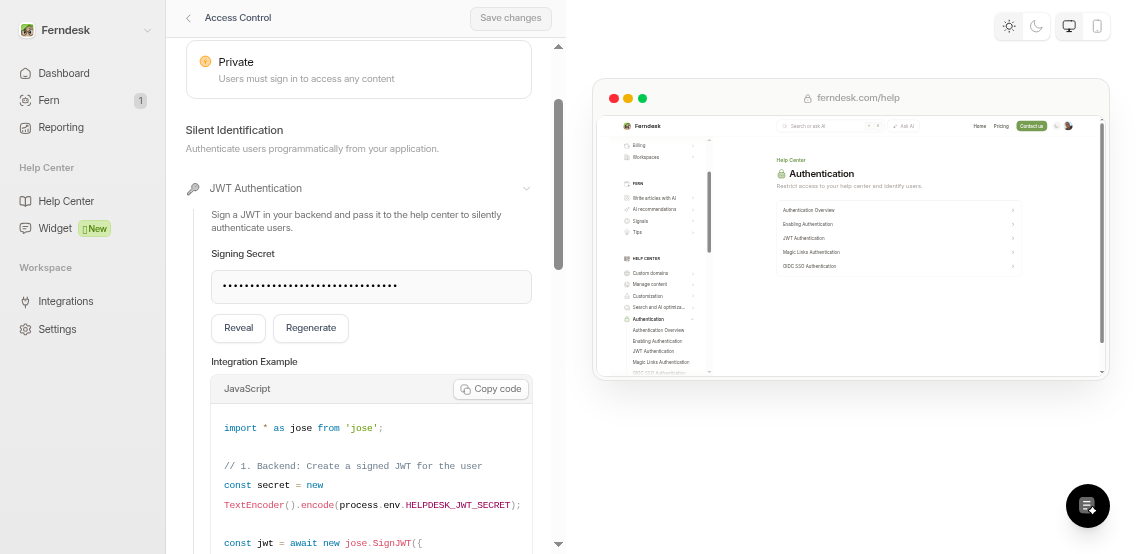
For detailed JWT implementation, see JWT Authentication.
Access Control Modes
Choose how authentication applies to your help center:
Public: No authentication required. Anyone can read all articles.
Private: Full authentication required. All content restricted to logged-in users.
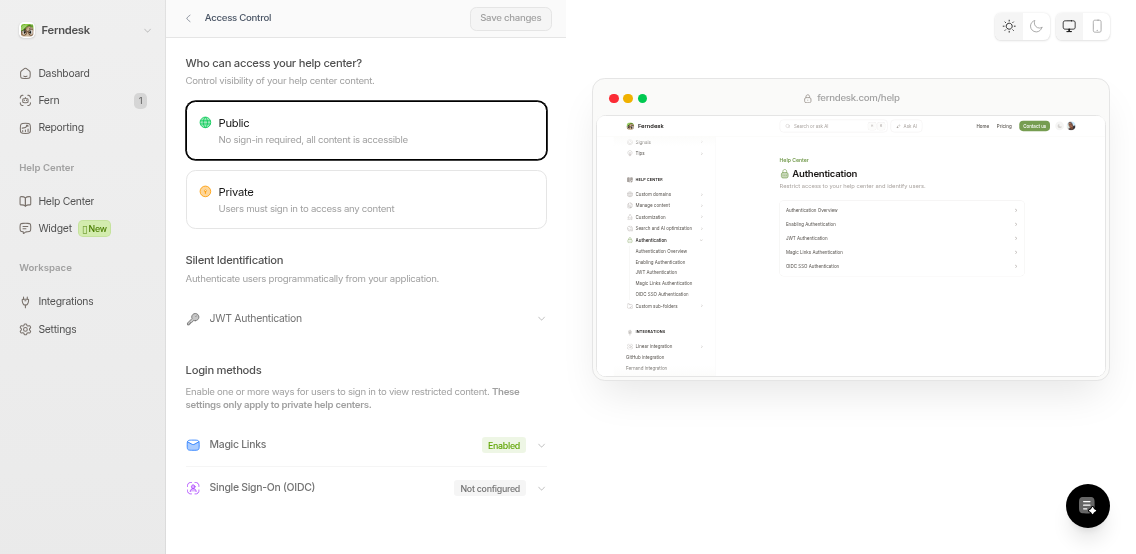
Configure these settings in your dashboard under Help Center → Settings.
What Authentication Enables
Once authentication is configured, you gain:
Session-based access control: Automatic enforcement of private article restrictions
User identification: Track which customers read which articles in your analytics
Just-in-time provisioning: Users are automatically created and updated on sign-in
Users will see a sign-in page at /signin when accessing protected content. Configure your authentication methods before switching to Private or Partial mode to avoid locking out your users.